How to Submit Your Podcast to Apple, Spotify, and YouTube
Last updated: October 2026
You submit a podcast by taking the RSS feed URL your host gives you and pasting it into each platform’s submission page once. Apple Podcasts and Spotify both work this way. YouTube is a little different, since it now pulls audio shows in through an RSS connection too, or hosts your video directly. Do it once per platform at launch and every future episode appears automatically. Here is the whole process.
Key takeaways
- You submit a podcast to Apple Podcasts and Spotify by pasting your host’s RSS feed URL into each platform once.
- Apple Podcasts reviews a new show in anywhere from a few hours to a couple of days, while Spotify often lists it within hours.
- Apple Podcasts Connect and Spotify for Creators both verify ownership with a link or code sent to the email address in your RSS feed.
- YouTube can import an audio podcast through the RSS connection in YouTube Studio and turn each episode into a static-image video.
- Podcasts imported to YouTube by RSS cannot contain ads, and any sponsorship has to be declared.
- After the one-time submission, new episodes appear on each platform automatically when you publish to your host.
What do you need before you submit your podcast?
Three things, and a host gives you all three. You need your show live on a podcast host with at least one published episode, your cover artwork meeting the apps’ spec, and your RSS feed URL in hand.
The artwork trips people up, so get it right first. Apple wants square cover art between 1400 x 1400 and 3000 x 3000 pixels, saved as PNG or JPG with no transparency and no alpha channel, and it prefers the full 3000 x 3000. Export at 3000 square and you clear every app at once. Too small or the wrong shape and the submission bounces.
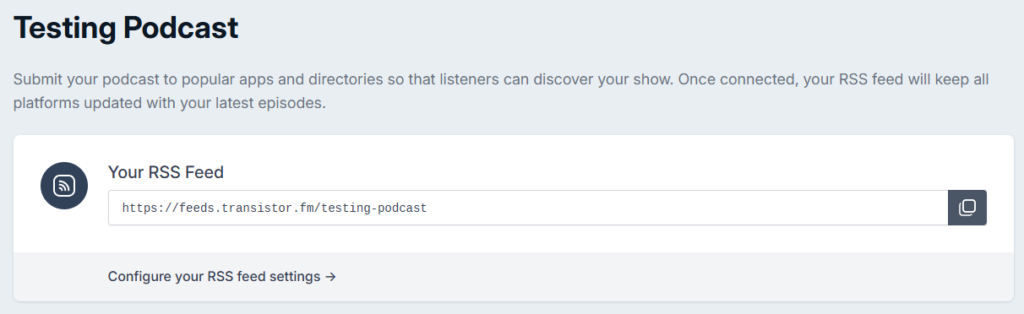
The feed URL is the key item. It lives in your host’s settings, usually on the show or distribution page, and looks like yourshow.hostname.com/feed. That single link is what every app reads, which is why one submission per app is all it takes. If any of this is unfamiliar, the mechanics are in how podcast RSS feeds work, and the host-by-host locations are in where to find your feed URL.
How do you submit to Apple Podcasts and Spotify?
Both follow the same shape: log in, paste your feed, verify, done.
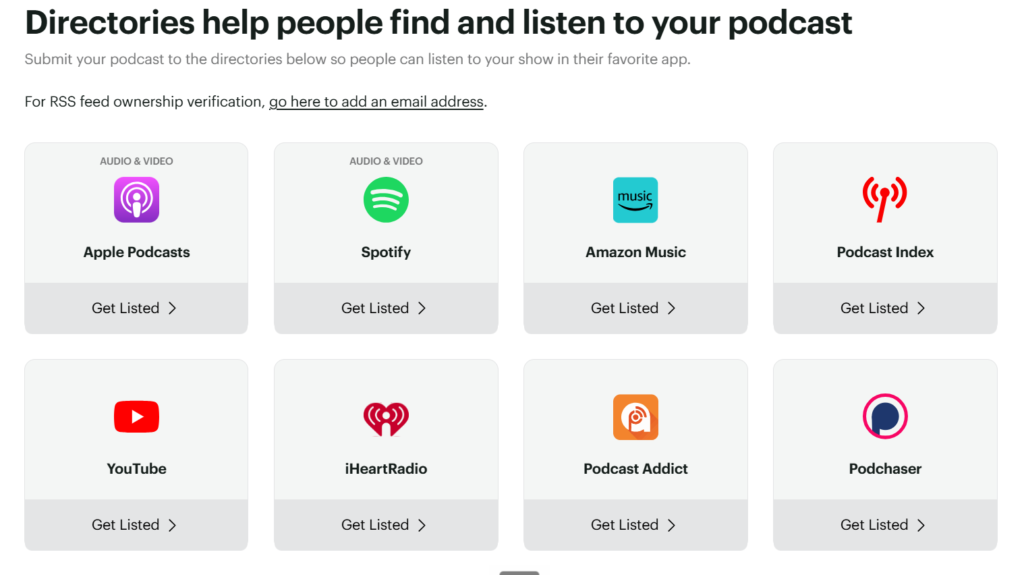
To publish a podcast to Apple Podcasts, which many people still call iTunes, sign in at Apple Podcasts Connect with an Apple account, choose to add a show, and paste your RSS feed URL. Apple validates the feed, pulls your show details and artwork from it, and asks you to confirm ownership by clicking a verification link sent to the email address in your feed. Then it goes into review, which can take anywhere from a few hours to a couple of days before your show is live.
For Spotify, go to Spotify for Creators, sign in, choose to add an existing show, and paste the same feed URL. Spotify reads the feed, shows you a preview to confirm it is your show, sends a verification code to your feed email, and once you enter it, your show usually appears within hours, often faster than Apple.
The thing to internalize: you are not uploading episodes to Apple or Spotify. You are handing them your feed address once. From that point on you publish to your host, and both apps notice the new episode on their next poll and pull it in. You never log back into Connect or Spotify to post an episode.
How do you get your podcast on YouTube?
YouTube changed the game here, and it is worth doing because YouTube is now one of the most-used podcast destinations. There are two routes.
The direct route: upload your episodes to YouTube yourself as videos, using a static image or simple visual over the audio, or real video if you record it. Full control, more manual work per episode.
The automated route: connect your RSS feed so YouTube pulls your audio episodes in and turns each one into a static-image video, the same submit-once model as Apple and Spotify. In YouTube Studio you go to Content, then Podcasts, hover your podcast and open Details, and under “RSS settings” click Connect to RSS feed. You accept the ingestion terms, then enter a verification code YouTube emails to the address in your feed. Expect a few days for the back catalog to upload, and note that you still publish the resulting videos yourself. RSS ingestion is available in over 100 countries and regions, so check the list if you are outside the usual markets.
Two rules catch people out. Your podcast content cannot carry ads, and any host-read promotion, sponsorship, or endorsement has to be declared. And if you re-upload a corrected audio file to your feed, YouTube does not swap it silently, you have to re-upload that episode from the feed, which creates a new video.
Some hosts also offer native YouTube auto-distribution that pushes each new episode for you, which we cover in the best podcast hosts that auto-distribute to YouTube.
Whichever route, submit once, then let new episodes flow. If you are still choosing where to publish from, start with the best podcast hosts for beginners.
You submitted but the episode still isn’t showing after 24 hours?
Start in Apple Podcasts Connect and check the show for warnings or errors, since a flagged feed quietly stalls distribution. Then work down Apple’s own list. Confirm the episode is actually published on your host and not sitting as a draft. Open your RSS feed in a browser and check the new episode is in it, because if it is missing there, no app can pull it. Look for a duplicate GUID or a repeated enclosure tag, which Apple ignores. Make sure no <itunes:block> tag got left on the show or episode, since that tells Apple to hide it.
Each of these has a full walkthrough in podcast not showing in Apple Podcasts or Spotify, and if the feed was turned away at submission instead, start with podcast feed rejected by Apple.
If the feed itself is clean, it is usually just timing. Apps poll on their own schedule, and freshly uploaded audio can still be processing, so give it a few more hours before assuming something broke. New follows and a cached app can also lag a single device by a day.
FAQ
How long does it take to get on Apple Podcasts and Spotify? Spotify often approves within hours. Apple typically takes a few hours to a couple of days for the initial review. After that, new episodes appear automatically within minutes to hours.
Do I submit every episode to Apple and Spotify? No. You submit your RSS feed once per platform. After that, publishing to your host updates the feed and the apps pull each new episode on their own.
Can I put my podcast on YouTube? Yes, either by uploading episodes as videos yourself or by connecting your RSS feed in YouTube Studio so YouTube builds a static-image video for each episode. RSS ingestion covers over 100 countries and regions, and the feed you connect cannot contain ads.
Why was my podcast submission rejected? Usually artwork that is the wrong size or shape, an incomplete feed missing a required tag, or no published episode yet. Fix the feed or artwork and resubmit.