How to Move Off Podbean Without Losing Subscribers
Last updated: September 2026
This post contains affiliate links, and we may earn a commission if you sign up through them, at no cost to you. See our Affiliate Disclosure. Pricing as of August 2026.
Import your show into the new host from your Podbean RSS feed, then go into Podbean’s Advanced Feed Settings and set both forwarding switches, the redirect and the new-feed-url tag, and leave the old feed alive for at least four weeks. The same sequence applies leaving any host, laid out in how to switch podcast hosts without losing your subscribers. Do that in order, and every subscriber follows you automatically. Set only one of the two switches, or cancel early, and you start from zero.
Will you lose subscribers moving off Podbean?
No, as long as the redirect goes up before you cancel anything. Subscribers do not live in your Podbean account. They live in Apple Podcasts, Spotify, Overcast, and every other app, and each of those apps checks your feed URL on a schedule. The redirect is what tells them the address changed. Follow it and they re-point themselves without ever noticing.
The one way to actually lose them is to delete the show or close the account before the redirect exists. Kill the old feed and the apps get a dead URL, no forwarding address, and your listeners stop receiving episodes. There is no undo for that and no support ticket that recovers it, because the subscription lived on the listener’s device pointed at a URL that no longer answers.
So the whole job is sequencing. New host first, redirect second, cancellation last, and a gap of weeks before that last step.
Step 1: Get your Podbean RSS feed URL
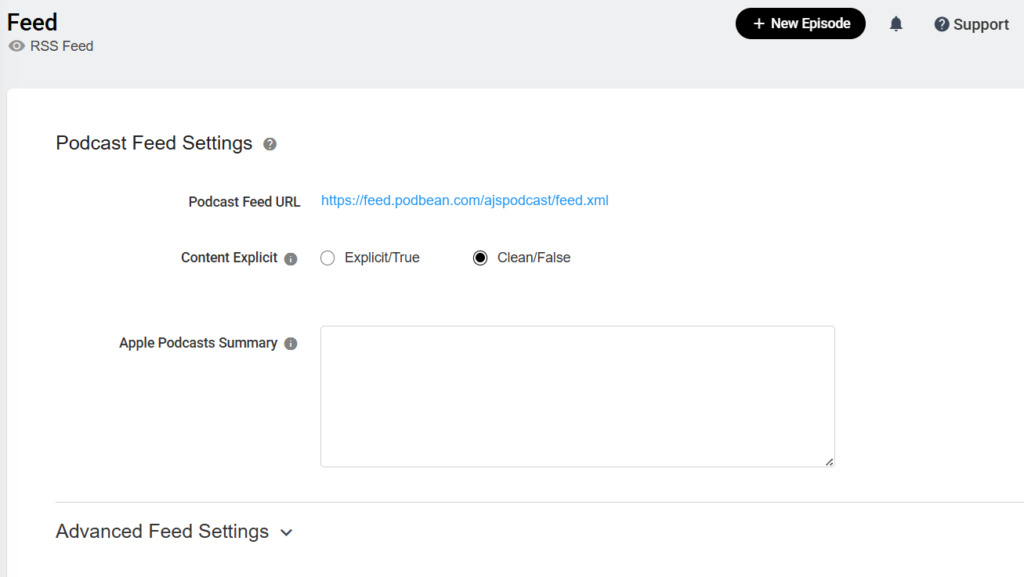
Log into Podbean and open Settings, then Feed. Under the heading “Podcast Feed Settings” you will see a field called “Podcast Feed URL,” and it looks like feed.podbean.com/yourname/feed.xml. Copy it exactly, including the https. That string is the only thing your new host needs to pull the entire show across. If the mechanics behind that address are new to you, start with what an RSS feed actually does.
While you are in there, do one thing people forget. Export your analytics. Download counts, listener geography, and episode history do not travel between hosts, and your new host starts your stats at zero on day one. Podbean’s numbers are the only record you will ever have of everything before the move, and once the subscription lapses you lose access to them.
Grab the show artwork at full resolution too if you do not have the original file somewhere. Most imports carry the artwork over automatically, but if yours does not, you want the 3000 by 3000 pixel original rather than something scraped back off a directory at half size.
Step 2: Import the back catalog into your new host
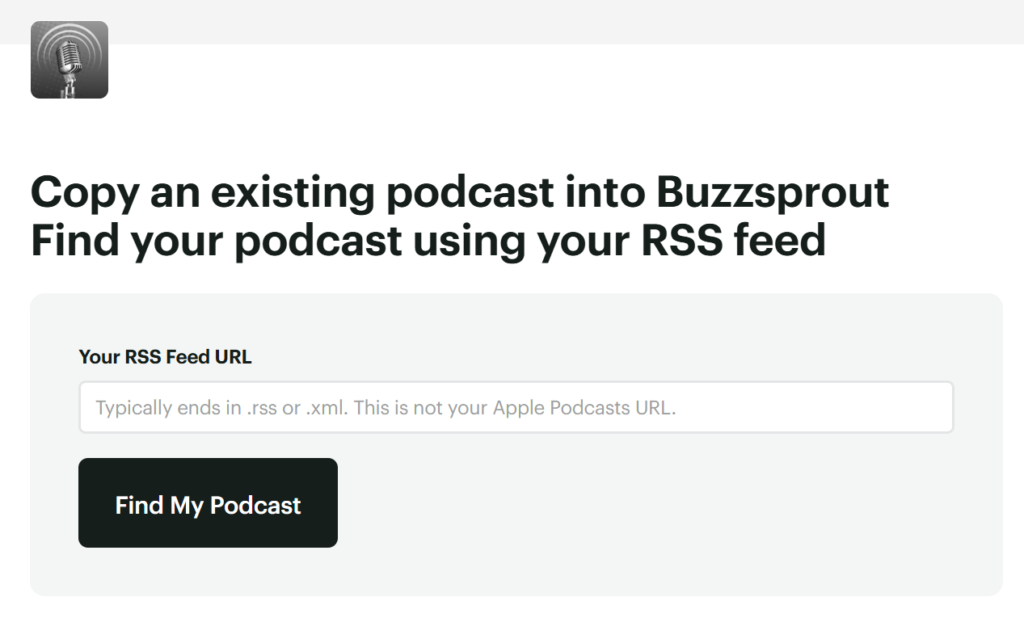
Paste that feed URL into your new host’s import tool, and it pulls every published episode across: audio files, titles, show notes, publish dates, and artwork. On Buzzsprout, it is an RSS import on setup. On Transistor and Captivate, it is the same idea under a new-podcast flow. It usually takes minutes, not hours, and nothing on your live feed changes while it runs, so there is no risk in doing this part first.
Then check the import before you touch anything else. Episode count should match exactly. Spot-check the oldest episode and the newest, confirm the audio actually plays, and read one set of show notes to make sure links and formatting survived. Imports occasionally drop a very old episode with a malformed date or a file the original host has already pruned.
One technical thing matters more than it looks. Your new host should preserve each episode’s original GUID, the unique identifier buried in the feed. Apple is explicit that altering the GUID may result in duplicate episodes being shown to listeners and can affect your show’s standing. Any competent host handles this on an RSS import. It is worth knowing the term, because if your listeners suddenly see your whole back catalog appear twice, this is why.
Step 3: Set the redirect, and the tag Apple wants
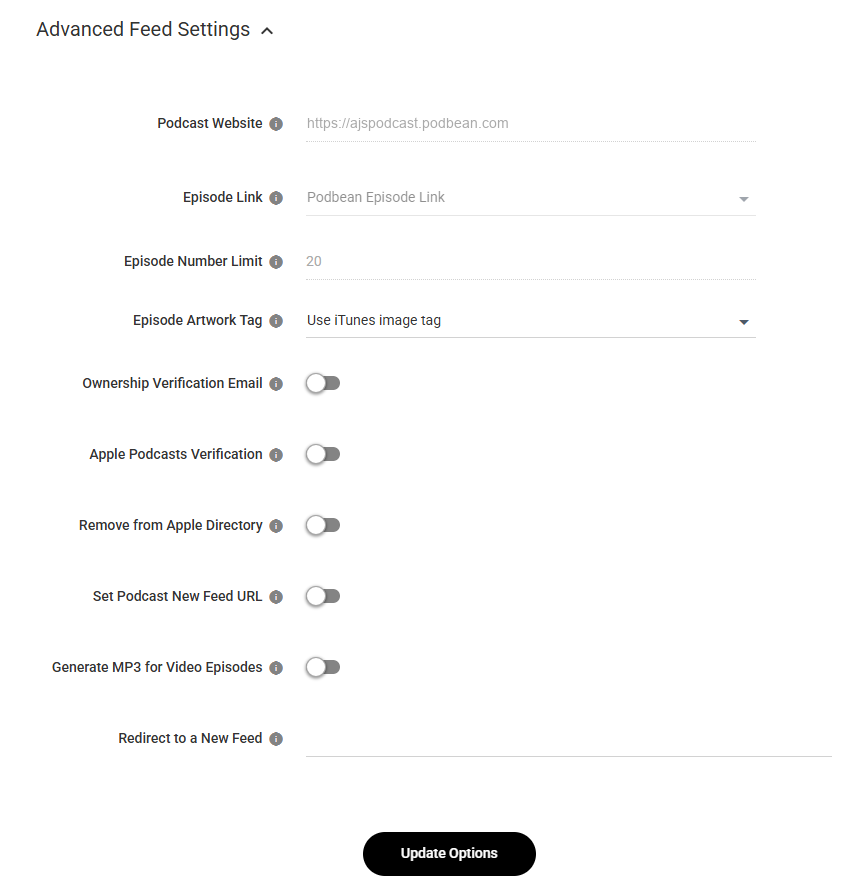
Here is where most guides to this get it wrong. Podbean gives you two separate switches, and you need both. Go back to the same Settings, Feed page you copied your feed URL from, and expand the collapsed “Advanced Feed Settings” panel at the bottom. Set both of these, then click Update Options:
- “Redirect to a New Feed,” the last field in the panel. Paste your new host’s RSS URL here. This is the 301, and it is the one every podcast app follows. Per Transistor’s migration documentation, it goes active within a couple of minutes.
- “Set Podcast New Feed URL,” a few rows above it. This writes the
itunes:new-feed-urltag into your old feed, and Podbean’s own help text on that toggle says you “should use this tag in your old feed” when your URL changes.
Why both? Because Apple treats them as two requirements, not one, and asks you to maintain the tag and the 301 redirect for at least four weeks. The redirect handles the general podcast-app world. The tag is what Apple Podcasts reads. Set only the redirect, which is what most people do because it is the one everybody writes about, and you have left the largest directory in podcasting to work it out on its own.
A 301 is a permanent redirect, and that word matters. It tells every podcast app that the show has moved for good, so each one updates its stored feed URL to the new one rather than treating it as a temporary detour. That is the mechanism that moves the subscription itself. A temporary redirect would only forward the next episode.
Already closed your Podbean account? You are not stuck. Email Podbean support at contact@podbean.com and ask them to enable a 301 redirect on your old feed. They can set it server-side after the fact. It is slower than doing it yourself and it depends on their support queue, which is a decent argument for setting the redirect while you still have a working login.
Step 4: Wait four weeks before you cancel
Apple’s own guidance is to keep the redirect live for at least four weeks, and Podbean says the same thing in different words, recommending you leave the old feed in place for a few weeks so every subscriber has moved across. This is just a safety net to make sure everyone is able to continue to find your podcast.
The reason is that apps poll on their own schedules, not yours. An app that only checks a feed when the listener opens it will not see your redirect until that person happens to launch the app. Someone who listens monthly, or who has your show sitting in a queue they get to occasionally, needs the redirect to still be standing when they finally come back. Cancel at week two and you cut off exactly the casual listeners you most want to keep.
Publish at least one new episode through the new host during that window. It is the cleanest possible proof: if the episode shows up in Apple Podcasts and Spotify without you touching either dashboard, the redirect works, and your subscribers came with you. Then, and only then, cancel Podbean.
What breaks if you do this in the wrong order?
Four failure modes, and they range from irritating to unrecoverable.
Canceling before the redirect is the fatal one. Your feed URL dies, apps have nowhere to follow, and the subscriber list is gone for good. Rebuilding means asking your audience to re-subscribe, one by one, through channels most of them will never see. This is the mistake worth reading this whole article to avoid.
Changed GUIDs are the noisy ones. Your listeners get your entire archive delivered again as if it were new, their apps download dozens of episodes, and your analytics turn to soup for a month. Not fatal, genuinely embarrassing, and mostly avoidable by using a proper RSS import rather than re-uploading files by hand. If it already happened, here is how to fix duplicate episodes after switching hosts.
Setting one switch and not the other is the sneaky one, because it looks like it worked. Your show keeps arriving fine in most apps, so you assume you are done, while Apple Podcasts is the one place quietly not following you. That is usually the biggest slice of your audience, and you find out weeks later when your Apple numbers flatline.
Lost analytics are the quiet one. Nobody notices until a sponsor asks for six months of download numbers and the only host that has them is the one you stopped paying. Export before you leave.
Where should you land?
Depends on why you are going, and the honest answer for some people is that they should not go at all. If you only ever used Podbean to host audio, it still does that well, and Unlimited Audio at $12 a month billed yearly is decent value.
If you left because Podbean’s dynamic ad insertion went dark in Europe, go to Captivate. Its $17 Personal plan, billed yearly, includes dynamic insertion on every tier with no regional carve-out, alongside 30,000 downloads a month, unlimited shows, and private podcasting. The catch: that price needs annual billing, and there is no free plan. Start a free Captivate trial.
If you run several shows, Transistor hosts unlimited podcasts from $19 a month on Starter with 20,000 downloads, which beats the $79 yearly rate on Podbean’s Network plan for a cluster of small shows. The catch: ad insertion waits for the $49 tier. Start a Transistor trial.
If you want the simplest possible landing and no ad tooling, Buzzsprout is $15 a month billed yearly for 6 upload hours. The catch: it meters upload hours rather than storage, so a daily show feels the ceiling fast. See Buzzsprout’s plans. If you are weighing the two directly, Buzzsprout vs Podbean puts the billing models side by side.
Full breakdown of all four, and who each one suits, is in Podbean alternatives.
FAQ
How long does it take to move off Podbean? The work is under an hour: minutes to import the catalog, minutes to set the redirect. The waiting is the long part. Leave the old feed and redirect standing at least four weeks before you cancel, which is Apple’s stated minimum.
Do I lose my download history when I leave Podbean? Yes. Analytics do not transfer between hosts, and your new host starts counting from zero. Export your Podbean stats before you cancel, because you lose access to them with the subscription. Your back catalog itself moves across fine.
Where is the 301 redirect setting in Podbean? Settings, then Feed, then expand “Advanced Feed Settings.” The last field in that panel is “Redirect to a New Feed.” Paste the new host’s RSS URL there and save, and it takes effect within a few minutes. Set the “Set Podcast New Feed URL” toggle in the same panel too, because that one writes the tag Apple reads.
Do I need to set both the redirect and the new feed URL tag? Yes. Apple asks you to keep the itunes:new-feed-url tag and the 301 redirect both in place for at least four weeks, and Podbean puts them in two separate controls in Advanced Feed Settings. The redirect covers podcast apps generally. The tag is what Apple Podcasts specifically looks for. Setting only one is the most common way a migration half-works.
Can I redirect my feed after closing my Podbean account? Yes, but you have to ask. Email contact@podbean.com and request that they enable a 301 redirect on the old feed. It works, it just puts your migration in someone else’s support queue, so set the redirect before you cancel if you can.
Will my show keep its Apple Podcasts reviews and ratings? Yes. The redirect moves the existing show record rather than creating a new listing, so ratings, reviews, and your follower count stay attached. That only holds if you redirect. Submitting the new feed to Apple as a brand-new show starts you at zero on all three.
Do I need to do anything in Apple Podcasts Connect? Usually not. Apple says most third-party hosts handle the migration through the redirect and the itunes:new-feed-url tag, so no manual action is needed on your end. Check that your show still resolves in Apple Podcasts a few days after the switch.