What Is a Podcast RSS Feed? How It Works in 2026
Last updated: October 2026
An RSS feed is a single text file that lists your show and every episode in a format apps can read. Your podcast host builds it and keeps it online. Apple Podcasts, Spotify, and the rest read that one file to find new episodes. It is also the piece you own. Get the feed into the right places once, keep control of it, and distribution largely takes care of itself.
Key takeaways
- A podcast RSS feed is a single XML text file that lists your show and every episode, and your podcast host builds it for you.
- Apple Podcasts, Spotify, and other apps poll your RSS feed on their own schedule and pull in any episode they have not seen.
- You submit your RSS feed to each directory once at launch, and new episodes appear everywhere after that without logging back in.
- The four RSS tags that do the real work are enclosure (the audio file), guid (the episode’s permanent ID), itunes:image (the cover art), and itunes:category.
- Apple requires square podcast artwork between 1400 x 1400 and 3000 x 3000 pixels, as PNG or JPEG with no transparency.
- When you switch podcast hosts, a redirect on the old RSS feed keeps your subscribers, while a changed GUID makes apps download your whole catalog again.
What is an RSS feed, really?
Strip away the mystery, and it is an XML file, plain text with tags. At the top it holds your show details: title, description, artwork URL, category, language, author. Below that, one block per episode with the audio file link, a title, a publish date, and the show notes.
Want to see the raw file? The sample feed, every tag spelled out, and the four things that break a feed are all in our podcast RSS feed format guide, and what a GUID is in a podcast feed explains the one tag you should never let change. If Apple turned your show down or it is not showing up in the apps, start with podcast feed rejected by Apple or podcast not showing in Apple Podcasts or Spotify.
When you “have a podcast,” what you technically own is this feed.
Everything a listening app knows about your show, it learned by reading these tags. The artwork you see in Apple Podcasts, the episode order, the little description under each title, all of it is pulled straight from the feed your host generates.
Apple layers extra tags on top through its own namespace, the itunes: ones, which is why you set an episode as “explicit” or mark a season number, and it shows up correctly across apps. You almost never edit the raw file. Your host writes it for you every time you hit publish.
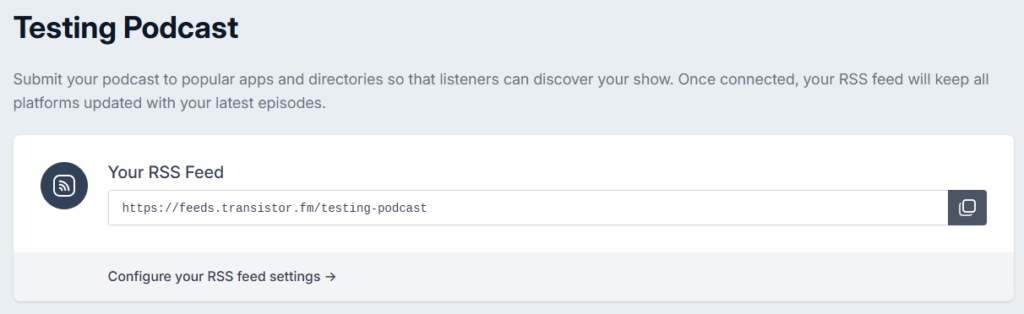
That is the file itself. Below is where it lives in a host’s dashboard, in this case Transistor, which hands you the feed URL behind a copy button rather than the raw XML.
How do apps read your feed?
They poll it. That is the unglamorous truth. Each app, on its own schedule, sends a request to your feed URL, reads the file top to bottom, and looks for episodes it has not seen. Find a new one, and it pulls the audio and shows it to subscribers.
You do this handshake once. At launch, you submit your feed URL to Apple Podcasts Connect and Spotify for Creators, plus any other directory you care about. They validate the feed, add your show to their catalog, and start polling. From then on, you never log back into those apps to publish. The step-by-step for all three, Apple, Spotify, and YouTube, is in how to submit your podcast. You upload to your host, the feed updates, and the apps notice on their next check. Sometimes that is minutes, sometimes a few hours, depending on how often each app polls.
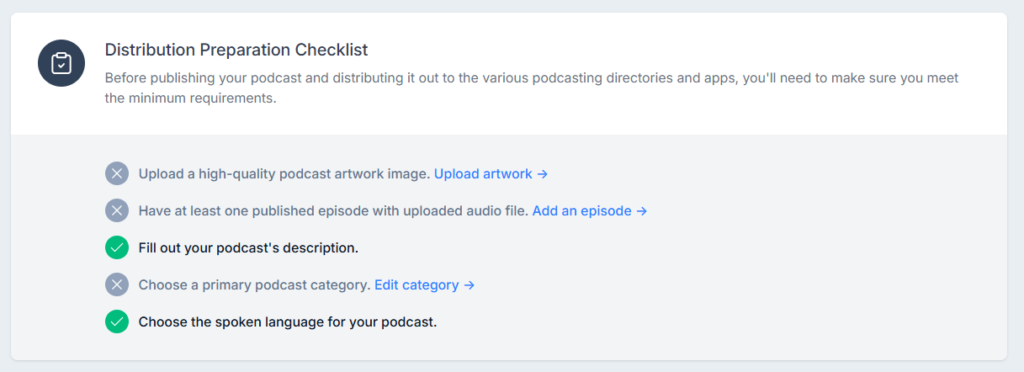
This is also why a podcast reaches everywhere from one action. You are not uploading to twelve apps. You are updating one feed twelve apps happen to watch.
Where do you find your podcast’s RSS feed URL?
Inside your host, on a settings or distribution screen, behind a copy button. It is never in Apple Podcasts or Spotify, because those apps only ever read the feed your host publishes. The exact screen on Buzzsprout, Transistor, Captivate, and Spotify for Creators, with a screenshot of each, is in where to find your podcast RSS feed URL.
Two habits save you real pain. Know where that address lives before you need it. And understand that it is portable, which is the whole reason you are never trapped with one host. When you switch, you import your episodes to the new host and set a redirect on the old feed so apps quietly follow the move, subscribers and download history intact. Break that redirect and your numbers reset.
One more thing worth guarding: whoever controls the feed controls the show. If a producer or agency set up your host under their account, the feed is theirs, not yours. Own the host account in your own name from day one.
FAQ
Do I have to create the RSS feed myself? No. Your podcast host builds and updates it automatically every time you publish. You copy the finished feed URL and submit it to the apps once.
Can I move my RSS feed to a new host? Yes. You import your back catalog to the new host and set a 301 redirect from the old feed. Done right, apps and listeners follow with no interruption.
What happens if my RSS feed goes down? Apps that poll it during the outage see no new episodes, and a long outage can drop your show from a directory. This is one reason to use a real host rather than serving a feed yourself.
Is a podcast RSS feed the same as my website? No. The feed is a machine-readable file apps consume. Your website is a page people visit. Some hosts give you both, but they are different things, which we unpack in podcast hosting vs a website.