How to Cancel Buzzsprout Without Losing Your Podcast
To cancel Buzzsprout, you delete the podcast from Settings, Podcast Settings, the Delete Podcast tab, and that wipes the RSS feed, the episodes, your followers, and your stats for good. If you want to keep the show, redirect it to a new host from the Redirect tab instead, which drops your account to Buzzsprout’s free plan, or park a finished show on the $5-a-month Archive plan. Delete is the only one of the three exits with no way back.
This post contains affiliate links, and we may earn a commission if you sign up through them, at no cost to you. See our Affiliate Disclosure.
Every Buzzsprout setting, price, and rule on this page was checked on Buzzsprout’s, Apple’s, Transistor’s, and Captivate’s own pages on October 26, 2026.
What happens when you cancel Buzzsprout?
The podcast gets deleted. Buzzsprout’s own cancel instructions are delete instructions: open Settings, then Podcast Settings, then the Delete Podcast tab, tick the Terms of Cancelation box, and press “Delete this Podcast and ALL its Data Now.” Only the podcast’s owner can do it. Got more than one show? Each one is deleted separately.
Buzzsprout’s list of what that button does is blunt. Your episodes come out of the directories, Apple Podcasts included. The RSS feed and all its data go, along with every stat in your account and your directory listings. Your followers on those directories are canceled, and any paying supporters you had through Buzzsprout Subscriptions lose their subscriptions. Then the line that matters: “Once deleted, your podcast cannot be recovered.”
So before you touch any button, pick your exit.
Should you archive, redirect, or delete your Buzzsprout podcast?
Archive if the show is done and you want the back catalog to stay findable. Redirect if the show carries on somewhere else. Delete only if you want the podcast to stop existing, and back it up even then. Here is what each one does, from Buzzsprout’s help pages:
| Exit | What it costs | Your feed | Directories and followers | Episodes | Stats |
|---|---|---|---|---|---|
| Archive plan | $5 a month, plus $5 an hour for any episode you upload later | Stays live at the same address | Listings stay live on every directory | Stay online and hosted at Buzzsprout | Stay in your Buzzsprout account |
| Redirect and move | $0 at Buzzsprout once your current billing cycle ends, plus the new host’s plan | A 301 redirect points it at your new host’s feed | Listings, subscribers, and listeners follow the redirect | Copied to the new host by its import | Do not move on their own. Export them first |
| Delete | $0 | Deleted with all its data | Listings removed, followers canceled | Removed from every directory and cannot be recovered | Deleted |
Two of the three exits end your Buzzsprout bill. The redirect leaves you on Buzzsprout’s free plan, though, not off the platform.
How do you move a podcast off Buzzsprout without losing listeners?
Back up, import, redirect, wait. Buzzsprout’s own transfer guide boils it down to two steps, moving your episodes and then placing a 301 redirect on the Buzzsprout feed, and the steps below fill in what it skips. The same order works leaving any host, laid out in how to switch podcast hosts without losing subscribers.
Step 1: Copy your feed, lift the feed lock, and back everything up
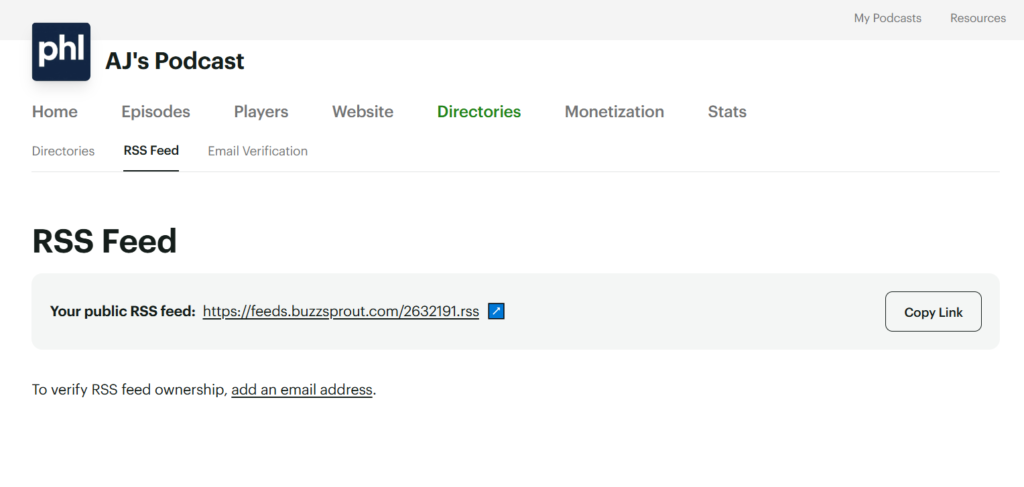
Your feed address is under Directories, then RSS Feed, next to the words “Your public RSS feed” and a Copy Link button. It looks like feeds.buzzsprout.com, a number, and .rss. A new host needs that URL and proof the show is yours. Transistor and Captivate both start an import by emailing the address in the feed, so if this screen says “To verify RSS feed ownership, add an email address,” add one first.
Check the lock next. If you ever locked the feed against transfers, the new host can’t read it. Buzzsprout’s feed lock guide puts the setting at Settings, Podcast Settings, the Advanced tab, right at the bottom. Uncheck the locked option and save.
Then take your copies, because Buzzsprout stops being a safe backup once you leave. The Backup tab under Podcast Settings hands you every episode’s audio as one zipped file (Buzzsprout emails the link, usually within 10 to 15 minutes), your show artwork as a full-resolution JPEG, the feed as a .rss file, and all your transcripts in one TXT file. Export your stats as well. Buzzsprout’s statistics page says you can export them any time, and Transistor’s guide is plain that analytics do not transfer between hosts.
Step 2: Import the show into your new host
If Buzzsprout inserts dynamic ads into your episodes, switch them off before you import. Transistor’s feed-prep guide says to “turn off any ads in your old host before starting your import,” and Captivate’s import guide asks for the same, so the new host copies clean audio. Then paste the feed into the new host’s import tool and let it copy the catalog. Your Buzzsprout feed keeps serving listeners the whole time, so there is no risk in doing this first. When it finishes, match the episode count, play the oldest and newest episodes, and read one set of show notes.
The thing to protect is the GUID, the ID every episode carries in the feed. Apple warns that altering the GUID may result in duplicate episodes showing up for listeners. Neither Transistor’s nor Captivate’s import guide says whether those IDs carry over, so ask the new host’s support to confirm before you place the redirect, and use the feed import instead of re-uploading files by hand. If your back catalog lands twice anyway, our guide to duplicate episodes after switching hosts walks through the fix.
Step 3: Place the redirect from the Redirect tab
Have the new host’s feed URL ready. In Buzzsprout, open Settings, then Podcast Settings, and pick the Redirect tab. Buzzsprout walks you through a backup and then the redirect itself. Check the confirmation box and press “Redirect RSS Feed and Downgrade to the Buzzsprout Free Plan.” With more than one show on the account, every feed needs its own redirect.
That button label is the whole deal. Placing the redirect sets your account to drop to the free plan when your current cycle finishes, so the paid plan runs out the time you already bought and the next bill is $0. Transistor’s and Captivate’s own Buzzsprout guides still send you to a “Cancel/Redirect Podcast” menu. Buzzsprout’s current help page uses the Redirect tab, so look there.
Sell Buzzsprout Subscriptions? Deleting ends every supporter’s subscription, and the transfer page says nothing about what a redirect does to them. Email support@buzzsprout.com before you press the button.
Step 4: Test the redirect, then leave Buzzsprout alone for four weeks
Open your old feeds.buzzsprout.com address in a browser. If the redirect works, it lands on your new feed. Transistor’s Buzzsprout redirect guide says it should be active within a couple of minutes, and that directories usually pick up episodes from the new feed within 24 hours.
Then wait. Buzzsprout asks you to keep the account at least three weeks after the redirect. Apple asks you to keep the redirect and the new-feed-url tag for at least four. Go with four. Apps check feeds on their own clocks, and the person who opens their podcast app once a month is exactly who a short wait strands. Publish one episode from the new host inside that window. If it shows up in Apple Podcasts and Spotify without you touching either, you’re done.
Do you have to keep paying Buzzsprout after the redirect?
No. The redirect moves you to the free plan, and after three weeks Buzzsprout says you are “welcome to remain on the free plan or cancel.” I’d stay. Canceling is still the Delete Podcast button, Buzzsprout’s delete list includes the feed itself, and the feed is where your redirect sits. Buzzsprout doesn’t say whether a redirect survives a delete. A free account that keeps the old address forwarding costs nothing, so there is no reason to find out.
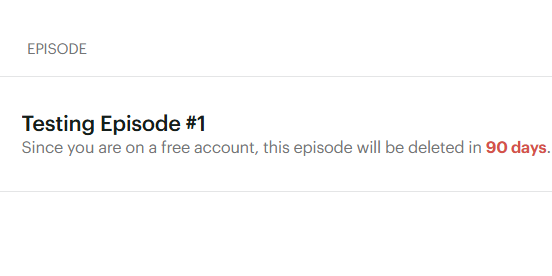
On the free plan, though, Buzzsprout hosts each episode for 90 days, then pulls it from your feed and every podcast app. Its free plan page keeps expired episodes in a safety net for another 90 days before permanent removal, and its billing page says deleted episodes “are not recoverable.” With the redirect in place your listeners are pulling from the new host, so this barely touches them. It does mean Buzzsprout is no longer a backup. Keep the copies from Step 1.
Want money back for time you won’t use? Buzzsprout’s refund policy lists the cases it grants, including a refund of your last charge if you tried it for a few months and it isn’t working out. You ask through the Get Help link in your account. It’s case by case, not automatic.
Is the Archive plan the better call for a finished show?
Yes, and it’s the answer that earns this site nothing. Moving a show you’ve stopped making means paying Transistor or Captivate at least $190 a year to keep the same episodes online. Buzzsprout’s Archive plan does it for $5 a month, $60 a year, and the feed, the episodes, the directory listings, and your data stay where they are.
To switch, open Settings, then Podcast Settings, then the Archive tab, and pick “Move Podcast to Archive Plan.” You have to be listed as the account Owner. A show on a multi-podcast plan doesn’t need to move at all, because Buzzsprout says it stays live and hosted where it is. If you record a one-off episode later, it costs $5 an hour on top, and you can go back to a regular plan from Settings, Subscription, Plan.
Two warnings before you click. If you’re on an old Legacy plan, Buzzsprout’s pricing FAQ says you lose Legacy pricing if you “downgrade, cancel, or move your podcast,” so ask support whether Archive counts before you switch. And Archive is a terrible way to keep publishing. A weekly one-hour show would pay $60 for the plan and $260 for 52 hours at $5, or $320 a year, more than the regular Audio plan.
Where should you move a Buzzsprout podcast?
Price alone is a weak reason to go. Take a weekly one-hour show, about 52 hours of audio a year. It fits inside Buzzsprout’s Audio plan with room to spare, and nothing below beats that plan’s yearly price. Here is the math from each host’s pricing page in October 2026.
| Option for a weekly one-hour show | 12 months, billed monthly | 12 months, billed yearly | What caps you |
|---|---|---|---|
| Stay on Buzzsprout Audio | $216 ($18 a month) | $180 ($15 a month) | 6 upload hours a month, or 72 a year on annual billing, and one podcast |
| Transistor Starter | $228 ($19 a month) | $190 | 20,000 downloads a month, unlimited shows |
| Captivate Personal | $228 ($19 a month) | $204 ($17 a month) | 30,000 downloads a month, unlimited shows |
| Buzzsprout Archive, still uploading weekly | $320 ($60, and 52 hours at $5) | Not listed | No upload allowance at all |
So moving costs that show $10 to $24 more a year on annual billing. What the extra buys is room. Transistor and Captivate both host unlimited shows on their cheapest plan and charge by downloads, not upload hours, while Buzzsprout’s Audio plan covers a single podcast. If you’re launching a second show, or your episodes run long enough to push past six hours a month, the math flips. A weekly two-hour show uploads about 104 hours a year, and on Buzzsprout’s annual Audio plan that is $180, then 32 extra hours at Buzzsprout’s $2 annual overage rate, or $244, against $190 at Transistor. Plug in your own numbers with our podcast hosting cost calculator.
Transistor, if you want the lower annual price
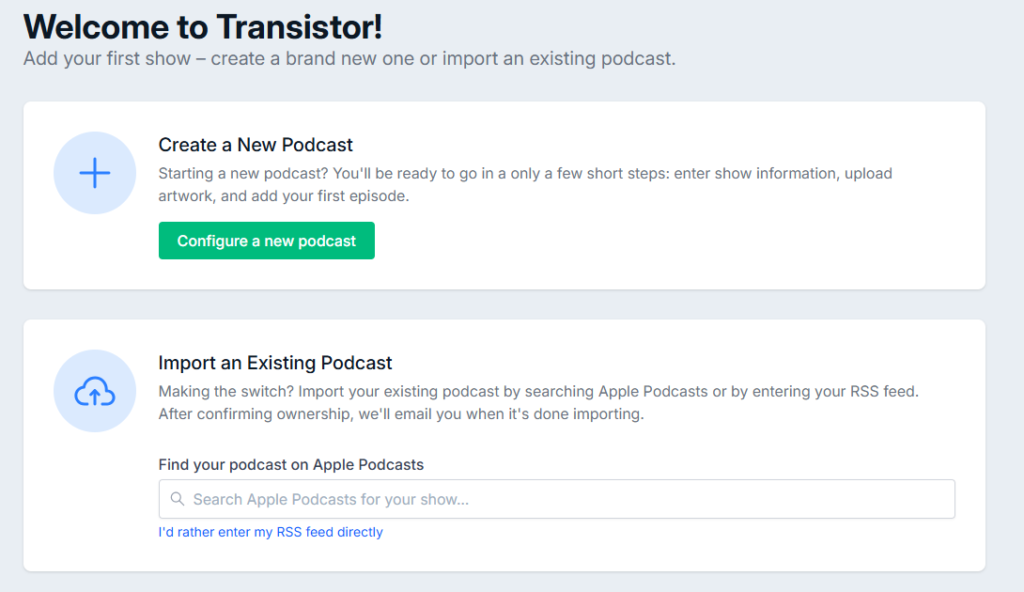
Starter is $19 a month, or $190 a year, for unlimited podcasts and 20,000 downloads a month, with a 14-day free trial. Its import guide names Buzzsprout as a host you can import from. Click Add show, then use Import an Existing Podcast: search Apple Podcasts for your show, or choose to enter the RSS feed directly. Transistor emails you when the import is done. The downside is that dynamic ads start on the $49 Professional plan, not Starter. Start a Transistor trial.
Captivate, if you sell ads or want your old stats
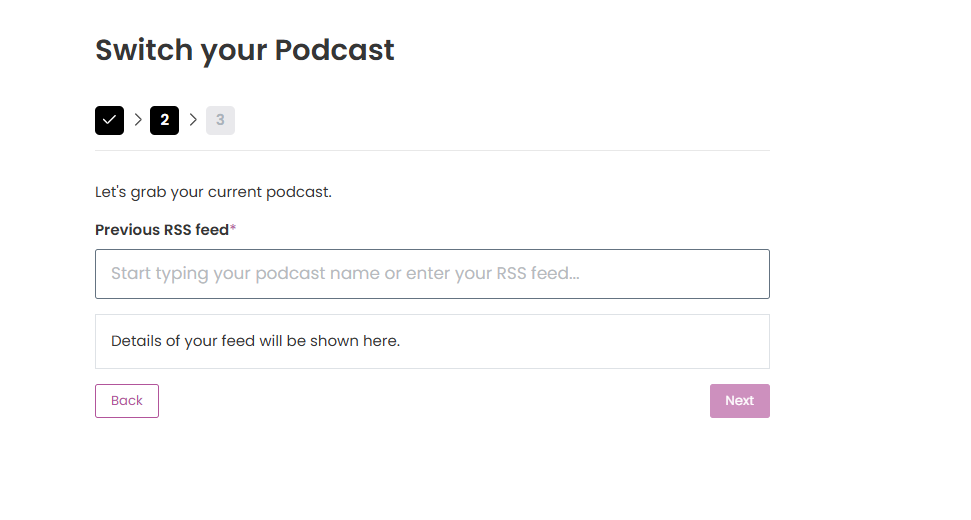
Personal is $17 a month paid yearly, or $19 month to month, for unlimited podcasts and 30,000 downloads a month, with a 30-day free trial. Dynamic content insertion, which Captivate calls AMIE, comes on every plan. Click Add New Podcast, then Switch Your Podcast to Captivate, and paste your Buzzsprout feed or search your show’s name. It is also the only one of these two that takes your old download history. Its Legacy Analytics importer reads a .csv report of your Buzzsprout numbers, and Captivate says to ask your old host’s support for the file if you can’t find the export. Start a Captivate trial.
The $17 price needs annual billing, though. And per Captivate’s import guide, transcripts and chapters don’t come across, so you re-upload them (the Buzzsprout Backup tab already gave you the transcripts). Any ads you switched off before the import get rebuilt in AMIE.
If you don’t sell ads, I’d pick Transistor, which is $14 a year cheaper on annual billing. Selling ads, or wanting your old download charts on the new dashboard, tips it to Captivate. Still deciding? Buzzsprout alternatives sorts the other hosts by what you need.
What else should you know before you cancel Buzzsprout?
Does canceling Buzzsprout delete my podcast? Yes. The cancel steps end at a button labeled “Delete this Podcast and ALL its Data Now,” and it removes the feed, your episodes from every directory, your followers, and your stats. A deleted podcast can’t be recovered. Redirect first if the show is moving, or archive it if it’s done.
Can I pause my Buzzsprout podcast instead of canceling? Yes, with the Archive plan. It’s $5 a month, keeps the feed, episodes, and listings live, and comes with no upload allowance, so a new episode costs $5 an hour. Switch from Settings, Podcast Settings, the Archive tab.
How long should I keep Buzzsprout after redirecting? At least four weeks. Buzzsprout asks for three, and Apple asks for four for the redirect and the new-feed-url tag. The redirect already set your account to fall to the free plan when the billing cycle ends, so the wait costs nothing extra.
Will I lose my Buzzsprout stats? Not if you export them first. Download numbers don’t move between hosts by themselves, so a new dashboard starts at zero. Buzzsprout lets you export your statistics, and Captivate’s Legacy Analytics importer takes a .csv report from your old host. Transistor starts fresh.
What if I already deleted my Buzzsprout podcast? Email support@buzzsprout.com right away. Transistor’s guide says Buzzsprout support can still turn on a 301 redirect for someone who no longer has an account, but Buzzsprout’s cancel page says a deleted podcast “cannot be recovered,” so don’t count on it. Without a redirect, you update the feed in Apple Podcasts Connect and Spotify by hand, and your subscribers have to find you and subscribe again.
Do I lose Legacy pricing if I leave? Yes. Buzzsprout’s pricing FAQ says that if you “downgrade, cancel, or move your podcast,” you are no longer eligible for Legacy pricing. If you might come back, ask support what Archive would do to your rate before you change anything.
How do I cancel a Buzzsprout Subscription I pay for as a listener? Open your latest emailed receipt and click the Manage Subscription link. Buzzsprout’s supporter FAQ says that page lets you “cancel the subscription and stop future payments.” Each show you support is its own subscription, so cancel them one at a time.