Opus Clip vs Descript: Which Is Better for Podcast Clips?
Last updated: October 2026
This post contains affiliate links, and we may earn a commission if you sign up through them, at no cost to you. See our Affiliate Disclosure. Pricing as of September 2026.
Get Opus Clip if you only need short clips from a finished video episode and want them found, captioned, and posted for you. Get Descript if you edit the episode yourself, because its clip tool comes with the editor at no extra cost. A weekly video show that wants lots of clips does best with both.
Key takeaways
- Opus Clip charges 1 credit per minute of source video, so a 60-minute episode costs 60 credits no matter how many clips it cuts.
- Opus Clip Pro billed yearly works out to $14.50 a month for 3,600 credits a year, which covers 52 hour-long episodes with credits left over.
- Descript’s Create clips tool is included on the Hobbyist plan and up, cuts 1 to 20 clips at a time, and spends AI credits rather than a set per-minute rate.
- Opus Clip Starter posts directly to YouTube Shorts, TikTok, and Instagram Reels, while Descript’s help center says it does not support publishing YouTube Shorts.
- Both free plans watermark video, and Opus Clip’s free clips stop being exportable after three days.
What is the difference between Opus Clip and Descript?
Opus Clip is a clipper. You hand it a finished episode, it hunts for the moments worth posting, crops them to vertical, adds captions, and scores each one. There is an editor for fixing what it cut, but the whole product points at one output: short clips.
Descript is a full audio and video editor. You record or upload the episode, edit it by editing the transcript, clean up the sound, and export the finished show. Clipping is one tool inside that editor, called Create clips, sitting next to show notes, filler-word removal, and Studio Sound.
So the choice comes down to where you want the clip button: in a separate tool that does nothing else, or inside the app where you already cut the episode. For the wider field of clippers, including quso.ai and Podsqueeze, see our guide to the best tool to turn a podcast into clips.
Opus Clip vs Descript at a glance
Every figure below comes from each vendor’s own pricing page and help center, checked on September 24, 2026.
| Opus Clip | Descript | |
|---|---|---|
| Main job | Auto-clipping a finished video | Editing the whole episode |
| Free plan | 60 credits a month, watermarked, no editing, exportable for 3 days | 1 media hour a month, 100 AI credits one time, 720p watermarked |
| Entry paid plan | Starter, $15 a month (monthly only) | Hobbyist, $16 a month yearly or $24 monthly |
| How usage is metered | 1 credit per minute of source video | Media hours for uploads, AI credits for AI tools |
| Clips per run | Set by episode length (23 to 32 for 30 to 60 minutes) | You choose 1 to 20 |
| Clip length | Ranges from under 1 minute to 15 minutes | 10 seconds to 5 minutes |
| Virality score | Yes, on Starter and Pro | No |
| Local upload size | 10GB (Free, Starter), 30GB (Pro) | 1GB (Free), 10GB (Hobbyist), 20GB (Creator) |
| Direct social posting | Starter: Shorts, TikTok, Reels. Pro adds a scheduler | YouTube and podcast hosts, no Shorts |
| Best for | Clips only | The whole edit, with clips on the side |
How does each one pick clips?
Opus Clip picks for you and ranks what it picks. Upload an episode and it returns a batch of clips, each with a virality score from 0 to 99 based on hook, flow, value, and trend, sorted best first. Opus’s help center says a 30- to 60-minute video yields 23 to 32 clips. Any plan can set a clip length or clip only part of the episode, and paid plans let you re-prompt the clipping to try again.
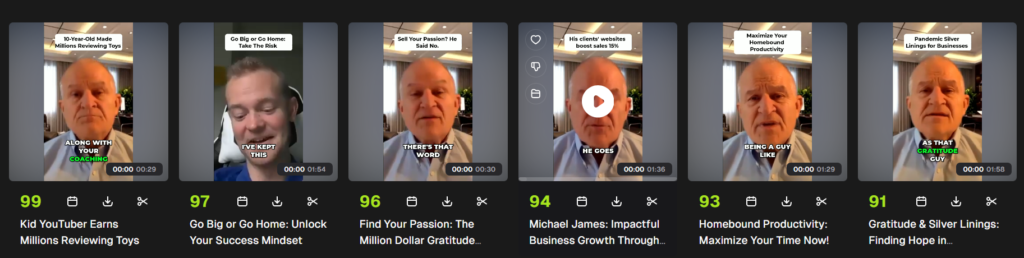
Test video: Gratitude “Podcast” Interview: Michael James by David George Brooke, licensed under CC BY.
The scores are a loose signal. In our testing, we kept maybe three or four of a dozen clips on a good episode, and every one we posted needed a re-crop and a caption fix first.
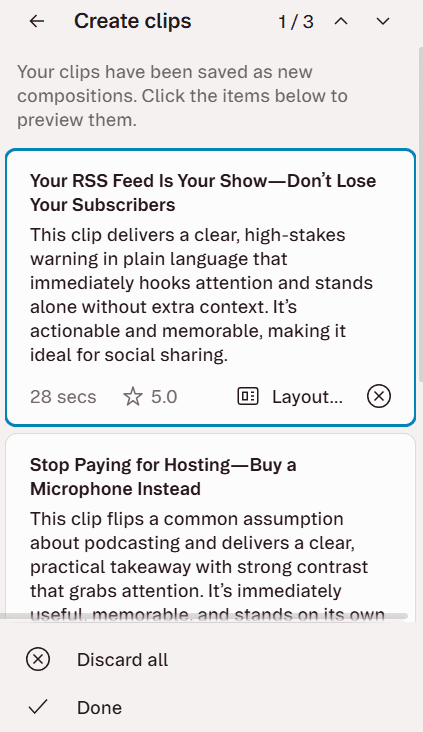
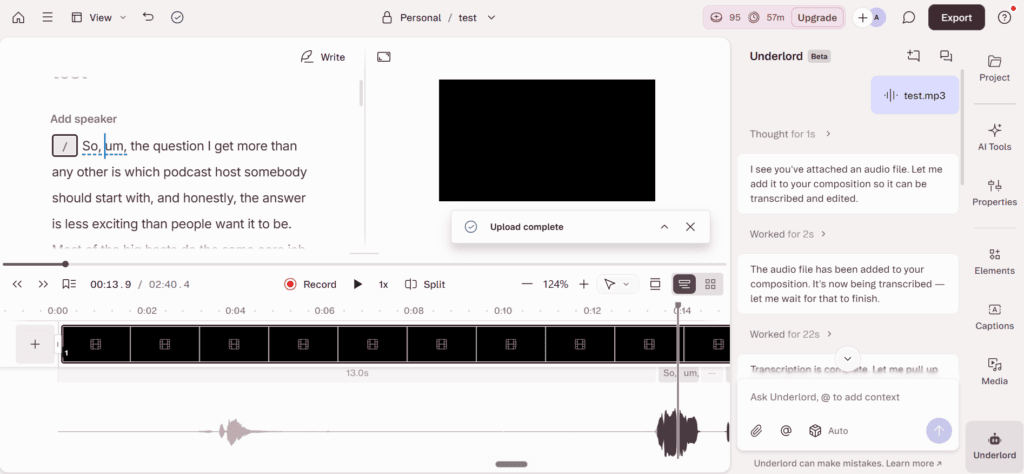
Descript makes you set the terms. In the AI Tools panel, under Repurpose, Create clips asks how many clips you want (1 to 20), how long (10 seconds to 5 minutes), and optionally a layout and a topic to steer the picks. Each clip lands as its own editable composition in a folder. You can also just ask Underlord, Descript’s AI co-editor, for clips in plain words. We ran it on our own 2-minute-40-second test file, on a free account. It made three clips and saved each as its own composition, with an AI-written title, a short note on why the moment works, the length, and a star with a number beside it (5.0 on the first clip). Descript’s help pages do not say what that number measures, so treat it as a hint, not a ranking like Opus Clip’s. The run cost 30 AI credits.
How do captions and reframing compare?
We are not grading caption accuracy head to head here, only what each vendor documents. Opus Clip lists AI captions with emoji and keyword highlights on every plan, and Starter advertises animated captions in more than 20 languages. Its reframing crops each clip to vertical and switches layouts automatically. Starter exports 9:16 only, and Pro adds 1:1 and 16:9 plus moving-object tracking.
Descript lists dynamic captions as unlimited on every plan, and you can change the font, colors, word highlighting, and position. For reframing, its Center Active Speaker tool (in beta) keeps whoever is talking in frame on a wide shot. It spends AI credits, and Descript’s help center says it does not work on multitrack sequences, so it is built for one camera on several people. Create clips offers 9:16 and 1:1 layout presets.
Whichever you use, budget about two minutes a clip to fix the in and out points and the caption line. Guest names are where auto-captions slip most.
How much editing control do you get?
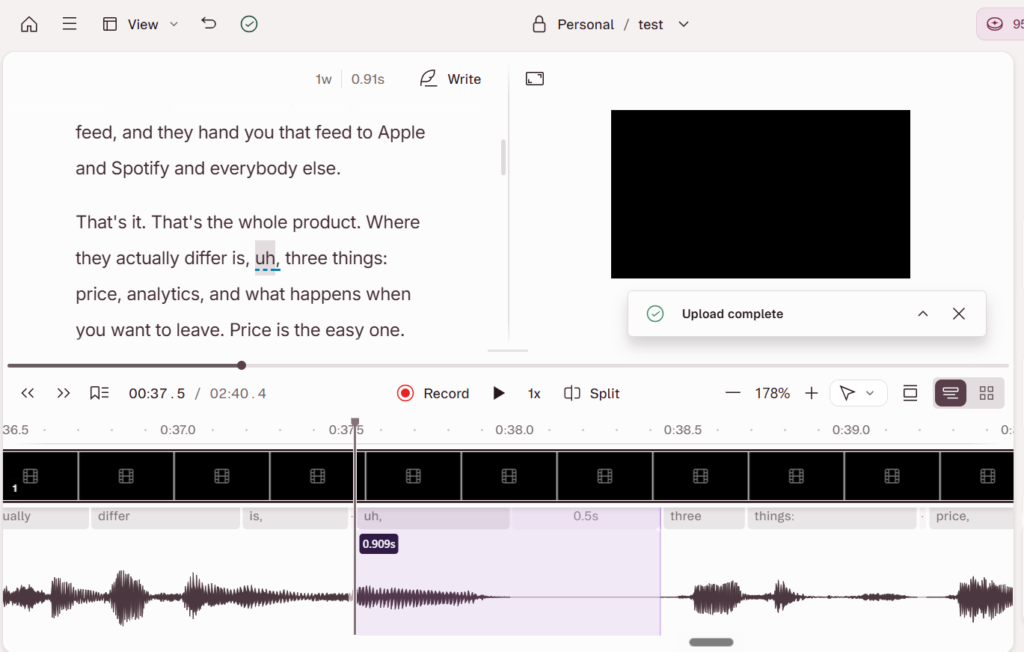
Descript wins this one easily. A clip in Descript is a full composition, so every editing tool works on it: cut words from the transcript, remove filler words, run Studio Sound, or change the layout. If a clip starts mid-thought, you delete the first sentence in the text and the video follows.
Opus Clip’s free plan has no editing at all. Starter adds text and timeline editing, filler and silence removal, custom reframing, and text overlays. Pro adds bad-take removal, music, transitions, and export to Adobe Premiere Pro and DaVinci Resolve for anything heavier. That is enough to fix a clip, not to edit an episode.
Do they support brand templates?
Both do, in different shapes. An Opus Clip brand template presets the aspect ratio, layouts, caption style, fonts, and the auto headline, then applies them to every clip in one click. Free and Starter get 1 template. Pro gets 2 on a single pack, and the plan comparison lists up to 4.
Descript uses layout packs: sets of layouts for camera shots, intros, captions, and chapter cards that share one style. Anyone can use the gallery packs, and Descript’s help center says custom layout packs need a paid plan. Brand Studio, which sets one default look for a whole team, is on Business. For a solo show, a remixed layout pack does the job.
What are the export, watermark, and upload limits?
Opus Clip’s free plan watermarks clips, renders up to 1080p, and stops letting you export after 3 days. Starter removes the watermark, exports at the highest resolution available, and gives you a 30-day export window. Pro has no export limit and 100GB of storage. Uploads can be up to 10GB and 10 hours on Free and Starter, and 30GB on Pro.
Descript’s free plan exports at 720p with a watermark. Hobbyist exports 1080p watermark-free, and Creator and Business export 4K. File uploads cap at 1GB on Free, 10GB on Hobbyist, 20GB on Creator, and 50GB on Business. The full plan breakdown is in our Descript pricing guide.
Import sources matter if your episodes live somewhere else. Opus Clip Free takes local files and YouTube links. Starter adds Google Drive, Vimeo, Zoom, Rumble, and StreamYard, and Pro adds more than 10 other sources, including Riverside and Dropbox. Descript imports local files, Google Drive, and Zoom cloud recordings.
How many credits does a weekly one-hour show use?
On Opus Clip, about 260 credits a month. Opus’s credit rules charge 1 credit per minute of the video you import, with partial minutes rounded down, so each hour-long episode costs 60. Four episodes is 240 and a five-episode month is 300. Starter’s 150 credits cover two episodes. Unused Starter credits roll over one extra month, which helps only if you skip weeks.
Pro’s 300 credits a month just cover a weekly show. On the yearly plan, Opus’s own pages disagree about how the credits arrive. Its pricing page shows 300 a month with unused credits rolling over for 2 months, while its credits help article says the full 3,600 arrive at purchase and last 12 months. Either way the year totals 3,600, which covers 52 hour-long episodes at 3,120 credits. Ask Opus support before you count on a 3,600-credit pool all at once. To save credits, use the processing timeframe slider to send only the part of the episode you want clipped.
Descript meters two things. Media hours count everything you upload or record, so a one-hour episode on a single track is about 4 to 5 hours a month, inside Hobbyist’s 10. Upload a separate one-hour track for each of three people and, if every track counts, you pass 10. Hobbyist cannot buy top ups. Create clips spends AI credits from the monthly pool (400 on Hobbyist, 800 on Creator), and Descript publishes no fixed cost for it.
How much do Opus Clip and Descript cost?
Here is every plan a podcaster would look at. Opus prices come from opus.pro/pricing and Descript prices from descript.com/pricing, both checked September 24, 2026. Descript is priced per person.
| Plan | Monthly | Billed yearly | Allowance |
|---|---|---|---|
| Opus Clip Free | $0 | $0 | 60 credits a month |
| Opus Clip Starter | $15 | Not offered | 150 credits a month |
| Opus Clip Pro | $29 | $14.50 a month ($174 a year) | 300 credits a month, or 3,600 a year |
| Descript Free | $0 | $0 | 1 media hour a month, 100 AI credits one time |
| Descript Hobbyist | $24 | $16 a month | 10 media hours, 400 AI credits a month |
| Descript Creator | $35 | $24 a month | 30 media hours, 800 AI credits a month |
| Descript Business | $65 | $50 a month | 40 media hours, 1,500 AI credits a month |
The odd one is Opus Clip Pro on yearly billing. At $14.50 a month it costs less than Starter at $15, with twice the credits, the scheduler, and more import sources. If you know you will clip every week for a year, skip Starter. Running both tools on yearly plans, Opus Pro plus Descript Hobbyist, comes to $30.50 a month.
Can you post or schedule clips to social from either?
Opus Clip, yes. Starter posts straight to YouTube Shorts, TikTok, and Instagram Reels, with no scheduler. Pro adds LinkedIn, Facebook, and X (Twitter), plus a calendar that schedules posts and writes descriptions and hashtags for them. Each post to X costs 3 credits per clip, per X account.
Descript mostly no. It exports straight to YouTube and to podcast hosts such as Buzzsprout, Captivate, and Transistor, but Descript’s YouTube export page says YouTube Shorts are not supported, so you download the clip and upload it yourself. Its help center lists no TikTok or Instagram destination and no scheduler. It does have a tool called Draft a social post, which writes the caption text for you.
Which should you choose?
Clips only: get Opus Clip. If someone else edits your episodes, or you publish them raw, Opus does the clip job with less work. It picks and ranks the clips, crops to vertical, and posts to Shorts, TikTok, and Reels without leaving the app. Start with Opus Clip. The downside is the meter. Starter’s 150 credits run out after two hour-long episodes, so a weekly show should budget for Pro.
The whole edit: get Descript. If you already cut your own episode, Create clips is included with the editor, and you polish each clip with the same transcript tools you used on the show. Try Descript’s free plan. The downside is the last step: there is no documented virality score, no Shorts publishing, and no scheduler, so posting is on you.
Both: edit in Descript, clip in Opus. This is the setup for a video show that posts clips every week. Finish the episode in Descript, publish it to YouTube, and let Opus pull the new upload through its YouTube auto-import. If you are still choosing a recorder to feed that setup, our Riverside vs Descript comparison covers the capture side.
FAQ
Is Opus Clip better than Descript for clips? For clips alone, yes. Opus Clip picks and ranks clips automatically, crops them to vertical, and posts to Shorts, TikTok, and Reels. Descript’s Create clips works inside the editor, but it has no documented virality score and cannot publish Shorts.
Can Descript make short clips automatically? Yes. Its Create clips tool scans a composition and cuts 1 to 20 clips of 10 seconds to 5 minutes each. It is included from the Hobbyist plan and spends AI credits.
Do Opus Clip and Descript have free plans? Both do. Opus Clip’s free plan gives 60 credits a month, with watermarked clips that stop being exportable after three days. Descript’s free plan gives one media hour a month and 100 AI credits that do not refill, with watermarked 720p video.
Do Opus Clip credits roll over? Partly. On a monthly plan, credits last 60 days, so unused ones carry into the next month. On a yearly Pro plan, Opus’s help center says the full year’s credits arrive at purchase and expire after 12 months, but its pricing page shows 300 credits a month with a 2-month rollover. Confirm with Opus support before you rely on a lump sum.